

How environment variables work
- Availability. Each variable is Available during runtime, Available during buildtime, or both (the default). Runtime variables reach every process of the application: the web process, background workers, cron jobs and jobs. You can’t limit a variable to one process.
- Next deployment. Adding, updating or deleting a variable takes effect with the next deployment. Runtime-only changes need a restart, not a new build.
- Storage. Sevalla encrypts values at rest. The dashboard masks them; click the eye icon to show one.
- Docker image applications have no build step, so their variables are runtime only and the availability options don’t appear.
- Global variables. The company’s global variables also reach the application. A variable the application defines with the same key replaces the global one.
.envfiles. Sevalla doesn’t read a.envfile from your repository. Import its contents into the dashboard instead.
You need permission to update the application to add, update or delete its variables.
Add environment variables
1
Open the Environment variables tab
In the sidebar, click Applications, then click the application. Click the Environment variables tab.
2
Enter the variables
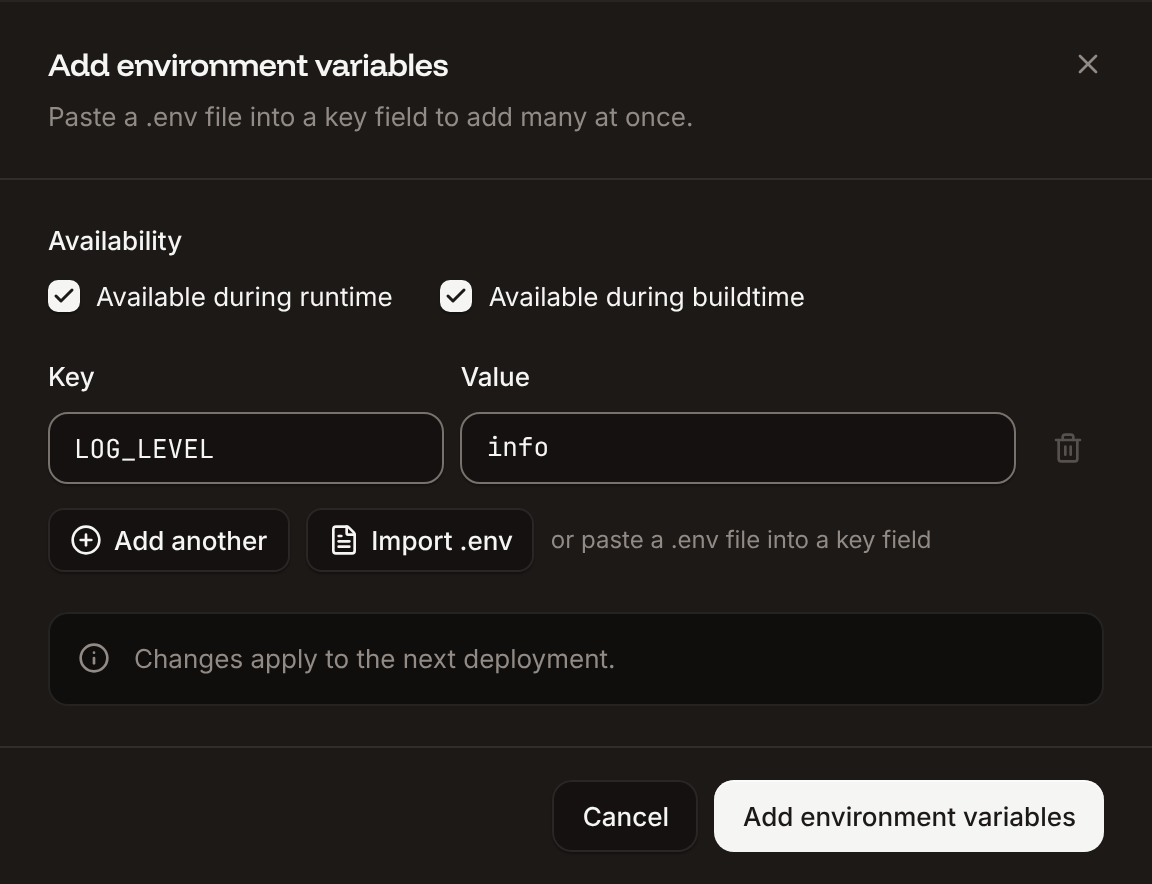
Click Add environment variables. Type a key and a value, and click Add another for more. To add many at once, paste the contents of a
.env file into a key field, or click Import .env and pick the file.3
Choose the availability
Under Availability, keep Available during runtime and Available during buildtime both selected, or clear the one you don’t need. At least one must stay selected.
4
Save and deploy
Click Add environment variables, then deploy the application.
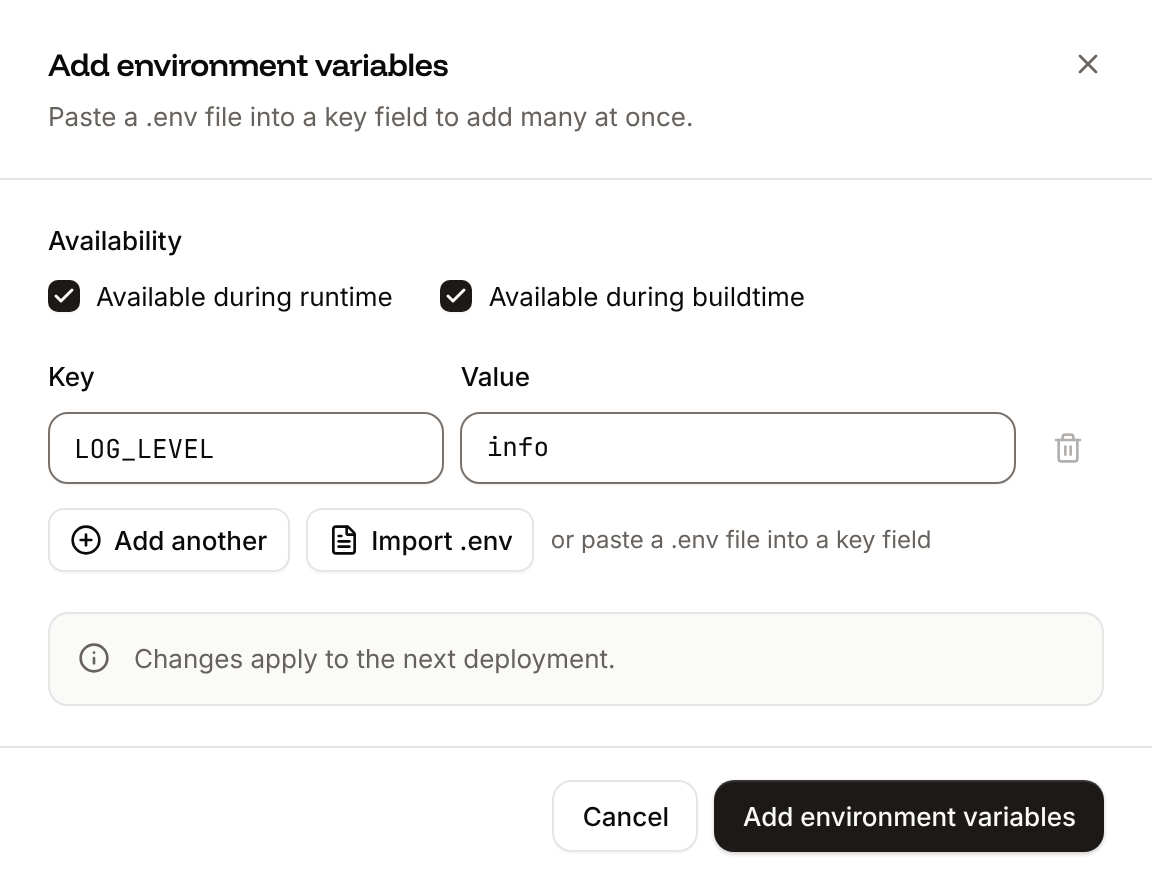
This key already exists, and a key that appears twice in the form shows Duplicate key. Keys are trimmed; values are saved exactly as you type them.
When you paste or import a .env file, Sevalla reads one KEY=value per line. It skips blank lines and comments (#), removes a leading export , removes quotes around a value, keeps multi-line values in double or single quotes, and drops # comments after unquoted values. A key that’s already in the form gets the pasted value.
The table lists each variable with its availability (Build & Runtime, Buildtime or Runtime) and who added or last updated it. Use Filter by key… to find one.
Update or delete a variable
To update a variable, click ⋯ on its row, then Update. Change the key, the value or the availability, click Update environment variable, and deploy. To delete one, click ⋯ on its row, then Delete, and confirm with Delete variable. To delete more than one, select their rows and click Delete with the count, for example Delete 3 variables. A deleted variable is gone from the next deployment on. You can’t undo this.Copy or export variables
- Copy all copies every variable of the application to the clipboard, as
KEY=valuelines sorted by key. - Export downloads the same content as a file named
export.env.
Use variables in your code
Read a variable the way your language reads any environment variable. For a variable namedAPI_KEY:
Use variables during the build
Build-time variables are set in the build environment for Nixpacks, Railpack and Buildpacks. A Dockerfile build receives them as build arguments, so declare each one withARG before you use it:
Dockerfile
Reference another variable
A value can include another variable as${KEY}. Sevalla replaces the reference with that variable’s value when it deploys, for example DATABASE_URL set to postgres://${DB_USERNAME}:${DB_PASSWORD}@${DB_HOST}:${DB_PORT}/${DB_DATABASE}. References resolve against the application’s and the company’s variables with the same availability, up to 10 levels deep. At runtime, a reference to a key that doesn’t exist stays as typed.
Special characters
At runtime, Sevalla passes values literally: commas, quotes, backslashes and$ reach your application unchanged, so don’t escape them. Base64 values need no wrapping either. Avoid the $(NAME) pattern in a value: the container runtime can replace it with the value of the variable NAME.
During the build, values pass through the build shell. A $ followed by a name, such as $HOME or ${UNKNOWN}, is expanded there, so a build-time value containing $ can change. If a secret contains $, make it available during runtime only.
Use letters, digits and underscores (_) in keys.
Variables Sevalla sets
Sevalla adds these variables to every deployment, during the build, at runtime or both. You don’t see them on the Environment variables tab. How each build strategy receives build-time variables is in Environment variables during the build.
A variable is left out when it has no value, for example the commit and branch of a Docker image deployment. For the web process, set the port on the Networking tab rather than with a
PORT variable: Sevalla sets PORT to the web process port.
Sevalla doesn’t set NODE_ENV. Add NODE_ENV=production yourself if your Node.js application expects it.
Variables from internal connections
When you add an internal connection to a database or another application, you can turn on Add environment variables to the application to save the service’s details as regular variables. You can rename them before you save, for example to the names your framework expects:
They’re available during the build and at runtime unless you change it, and they apply at the next deployment. Deleting the connection doesn’t delete them.
Global variables
Global variables belong to the company and reach every application in it, from each application’s next deployment. Use them for values many applications share, such as an error-tracking key. They work like application variables: each has a key, a value and an availability. They apply to applications only, not to static sites. An application’s Environment variables tab says how many global variables also apply to it, with a link to them. If the application defines a variable with the same key, the application’s value wins.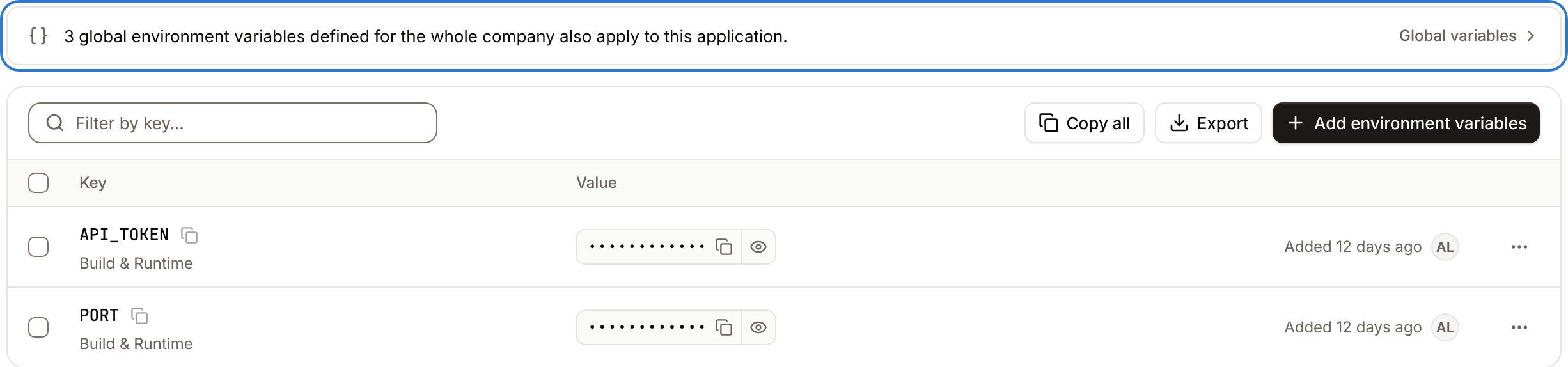
Seeing global variables needs permission to view the company’s applications, and changing them needs permission to update them, because a change reaches every application.
1
Open Global variables
In the sidebar, under Tools, click Global variables.
2
Add the variables
Click Add environment variables, enter the keys and values (paste or Import .env works here too), and choose the Availability.
3
Save and deploy
Click Add environment variables. Each application picks them up at its next deployment.
API and CLI
The API returns values decrypted, accepts keys of 1 to 255 characters and values up to 32,768 characters, and makes new variables available during both build and runtime unless you send
is_runtime or is_buildtime as false.