

What you can do
Create a database
Pick the engine, version, location and size.
Connect to a database
Internal connections for applications, external connections for everything else.
Backups
Automatic and manual backups, backup targets and restores.
Database studio
Browse and update data and run queries in the dashboard.
Import and export
Move data in and out with each engine’s own tools.
Analytics
Storage, memory and CPU over time.
Database settings
Rename, resize, restart, suspend or delete.
Troubleshoot databases
Connection errors and failed operations.
Engines and versions
The versions you can choose depend on the cloud your company runs on: Google Cloud, or Oracle Cloud Infrastructure (OCI) for new companies and for companies that have moved there (see OCI migration). The create form shows only the versions available in the location you pick. The first version in each list is the default.
On Google Cloud, Redis
8.x runs Redis 8.2, 7.x runs 7.2 and 6.x runs 6.2. Databases created on a version that’s no longer offered (for example PostgreSQL 15 or older) keep running, but you can’t create new ones on it. You can’t change a database’s version after you create it: to upgrade, create a database on the new version and move the data with the engine’s dump tools (see Import and export).
PostgreSQL databases can have the pgvector and PostGIS extensions turned on when you create them. See Create a database.
To run an engine Sevalla doesn’t offer, deploy it as an application from a Dockerfile with a persistent disk.
Sizes
A database’s size sets its CPU, memory and storage together. Prices are per month (730 hours), before tax; Sevalla bills by the second while the database runs. See Pricing.- Creating or resizing a database needs a valid payment method on the company.
- MySQL and MariaDB on DB1 can run out of memory under production load. Use DB2 or larger for production.
- You can move a database to a larger size at any time from its Settings tab. Moving to DB7 or larger needs our support team. See Database settings.
Storage
Storage comes with the size: there’s no separate storage to add. To get more storage, update the database to a larger size. Storage can grow but never shrink, so the dashboard doesn’t offer sizes with less storage (or less memory) than the database has now. To move to a smaller size, create a smaller database and restore a backup into it or import a dump. The storage a database uses includes the engine’s own files (indexes, logs, metadata), so it’s always larger than the data you put in. Backups don’t count toward it. Watch it on the Overview tab or in Analytics.How databases work
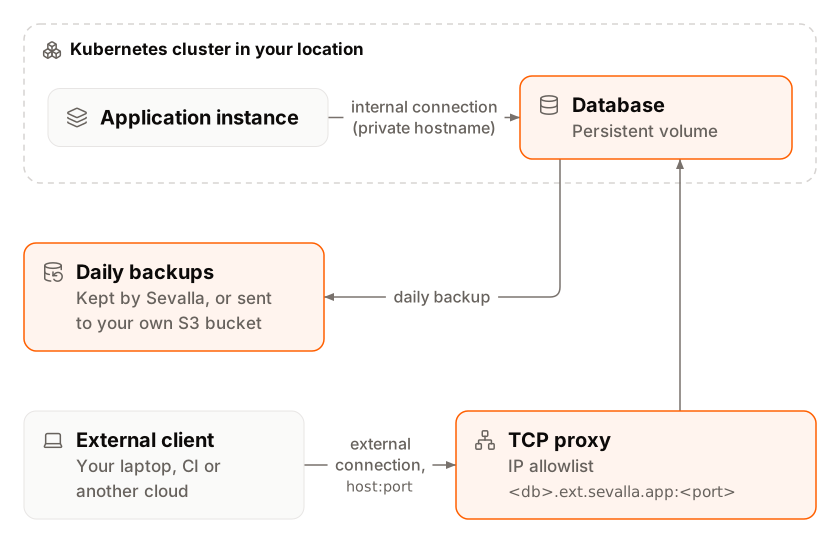
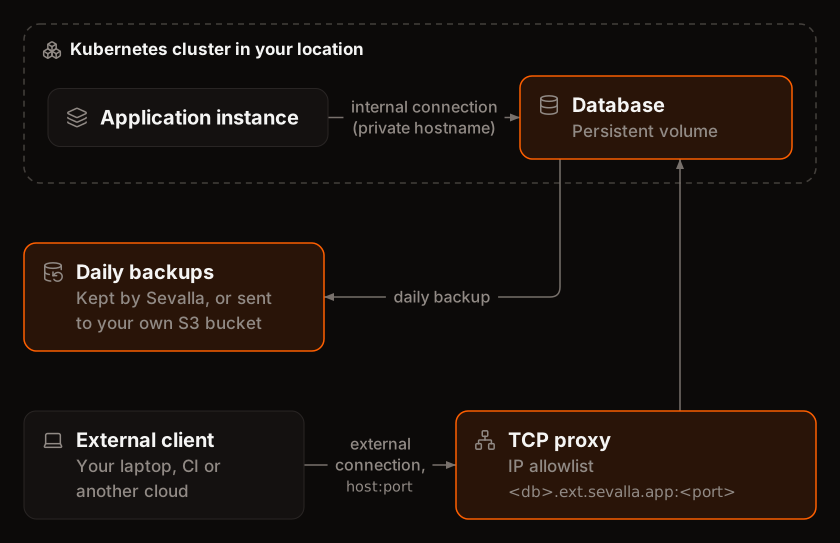 Each database runs as its own container on Sevalla’s Kubernetes cluster in the location you choose, with its data on a persistent volume. See Infrastructure.
- Internal connection. Applications in the same location reach the database over the private network on its internal hostname and the engine’s default port. An application needs an internal connection to the database first; the connection can also add the credentials to the application’s environment variables. See Connect an application.
- External connection. Off by default. When you turn it on, the database gets a public hostname and port that any client on the internet can use with the database’s user and password. You can limit it to IP addresses you choose. See Enable the external connection.
- Database studio. The SQL studio (or Redis studio) tab connects from inside Sevalla, so it works without the external connection. See Database studio.
- One database, one user. Each database server has the one database and the one user you set when you create it. The user isn’t a superuser, so you can’t create more databases or users on the same server: create another database instead. Redis and Valkey have a password and no user.
- Backups. Databases in Google Cloud locations get a snapshot every day, plus up to 5 manual ones. Databases in OCI locations back up as dumps to S3-compatible backup targets you add, such as a Sevalla bucket. See Backups.
Statuses
The dashboard shows a database’s status on its page and in the list. The API returns the value in the second column.
Most actions wait while a change is running: while the status is Creating, Updating, Updating external connection, Changing password, Restoring backup or Deleting, the dashboard disables them and says why.